
New Describe a workflow. Raq.com builds it for you and runs it on autopilot. Try Automations free →
Dual AI Chat AI Team Comms Task Board AI Pro Reasoning AI AI Image Lab AI AI Video Lab AI Automations AI Ask My Agent AI E-Sign CRM Arbiter AI Design Swarm AI Project Base Pretty Docs AI Secure Send Market Intel AI AI Music Lab AI KPI Hub Site Uptime Server Monitor Knowledge AI Render to Reality AI Vector Motion Lab AI Website Chatbox AI Co-Write File Drop Contract Auditor AI Spreadsheet AI Priorities AI Compliance Tracker Rewriter AI Screenshot Studio Screen Recorder Background Remover AI Image Optimiser SEO Checker AI Transcribe AI Vocalise AI Email Signatures AI Personas AI Recall Meal Planner AI Health Insights AI Nature Work Form Builder AI Prompt Library AI Skill Library AI PDF Page Studio File Converter Diff Viewer Receipt Extractor AI FinUK Short URL QR Generator OneDrive Search AI Dual AI Chat AI Team Comms Task Board AI Pro Reasoning AI AI Image Lab AI AI Video Lab AI Automations AI Ask My Agent AI E-Sign CRM Arbiter AI Design Swarm AI Project Base Pretty Docs AI Secure Send Market Intel AI AI Music Lab AI KPI Hub Site Uptime Server Monitor Knowledge AI Render to Reality AI Vector Motion Lab AI Website Chatbox AI Co-Write File Drop Contract Auditor AI Spreadsheet AI Priorities AI Compliance Tracker Rewriter AI Screenshot Studio Screen Recorder Background Remover AI Image Optimiser SEO Checker AI Transcribe AI Vocalise AI Email Signatures AI Personas AI Recall Meal Planner AI Health Insights AI Nature Work Form Builder AI Prompt Library AI Skill Library AI PDF Page Studio File Converter Diff Viewer Receipt Extractor AI FinUK Short URL QR Generator OneDrive Search AI
Raq.com
Back to Blog
· The Raq.com Team

Image Tray: Collect Your Best Generations and Send Them Straight to Video Lab
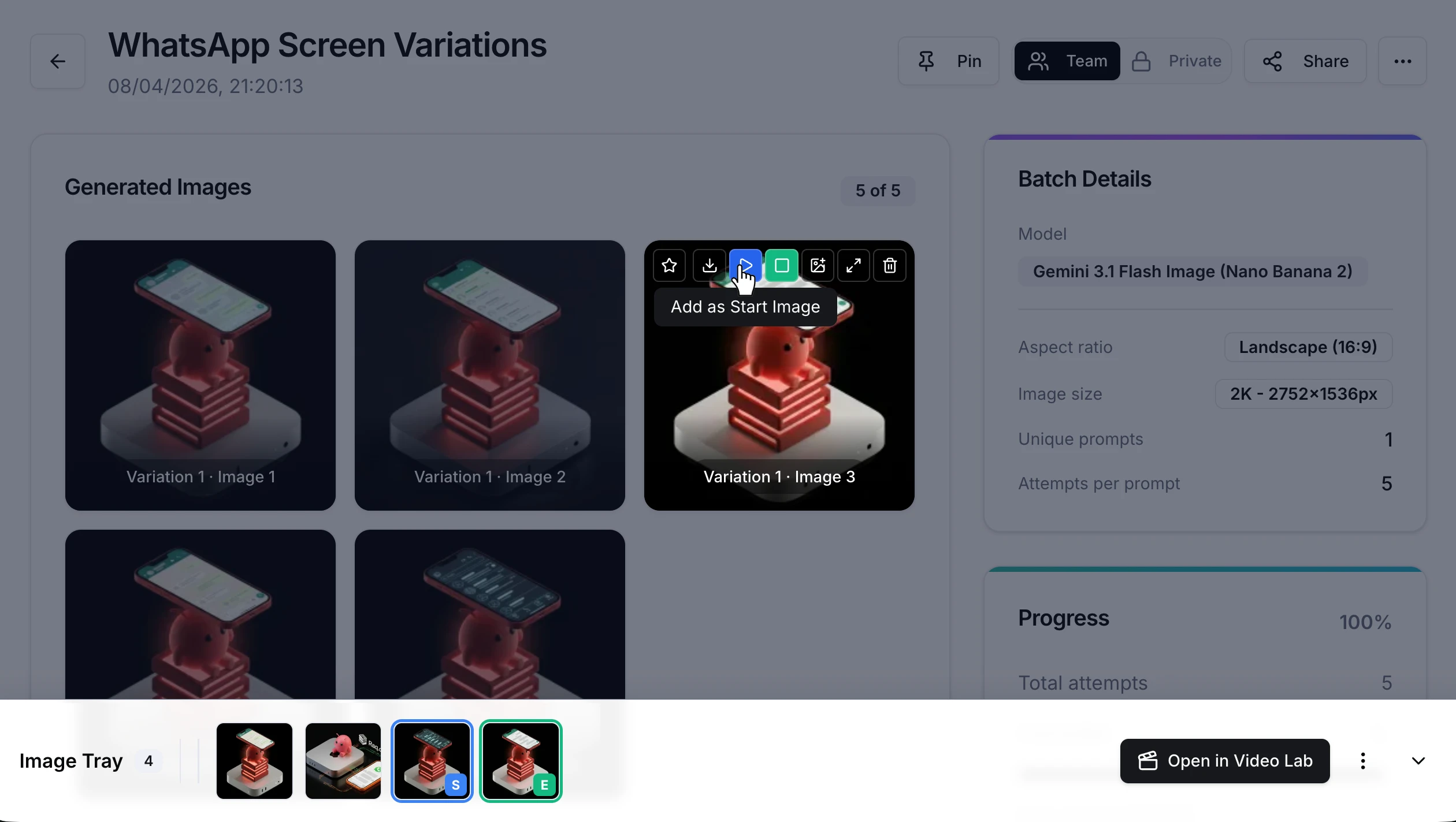
Image Tray: Collect Your Best Generations and Send Them Straight to Video Lab

Image Tray makes the jump from image generation to video generation seamless. Pick your favourite AI-generated images straight into a persistent tray, assign start and end frame roles, and send them to Video Lab with one click.

How it works

When you are viewing generated images in AI Image Lab, each output has action buttons in the toolbar. Click the play icon to add an image as a start frame, or the square icon for an end frame. The image drops into a persistent tray at the bottom of your screen.

Once you have your frames selected, hit Open in Video Lab. Your images arrive in Video Lab with the correct roles already assigned, ready to generate.

Key features

  • Collect up to 20 images. Browse multiple batches and cherry-pick from each. The tray persists across pages.
  • Assign start and end roles. Tap a thumbnail to set it as the start or end frame. Only one image per role, so swapping is instant.
  • Preview full-size. Click any thumbnail for a lightbox preview before committing.
  • One-click handoff. Send your role-assigned images straight into Video Lab with the correct slots pre-filled.
  • Collapse or clear. Minimise the tray to a badge in the corner, or clear everything and start fresh.

Getting started

Open AI Image Lab, generate or open a batch, and use the toolbar buttons to add your favourites to the tray. Select your start and end frames, click Open in Video Lab, and you are ready to go.

Image Tray is available now on all plans. It is a workflow feature with no additional AI usage required. Start your free trial. No credit card required.